Before we dive into using gatttool in interactive mode, make sure to disconnect the watch from your phone. BLE devices typically allow only one active connection at a time, and if your phone is still connected, it will block further access. We're now shifting gears instead of watching how the app talks to the watch, we'll take control ourselves using a Bluetooth dongle and gatttool. This will let us interact with the device directly and test how it responds to our commands.
Practical BLE Device Interaction
In the previous blog, we explored how to enable the Bluetooth HCI snoop log on Android, extract it from the bug report, and analyze it using Wireshark. By doing so, we were able to identify crucial handles and values exchanged between the app and our BLE target The Mystery Watch. Now, in this blog, we're taking things further. We'll use the insights we gathered to interact directly with the device using gatttool.
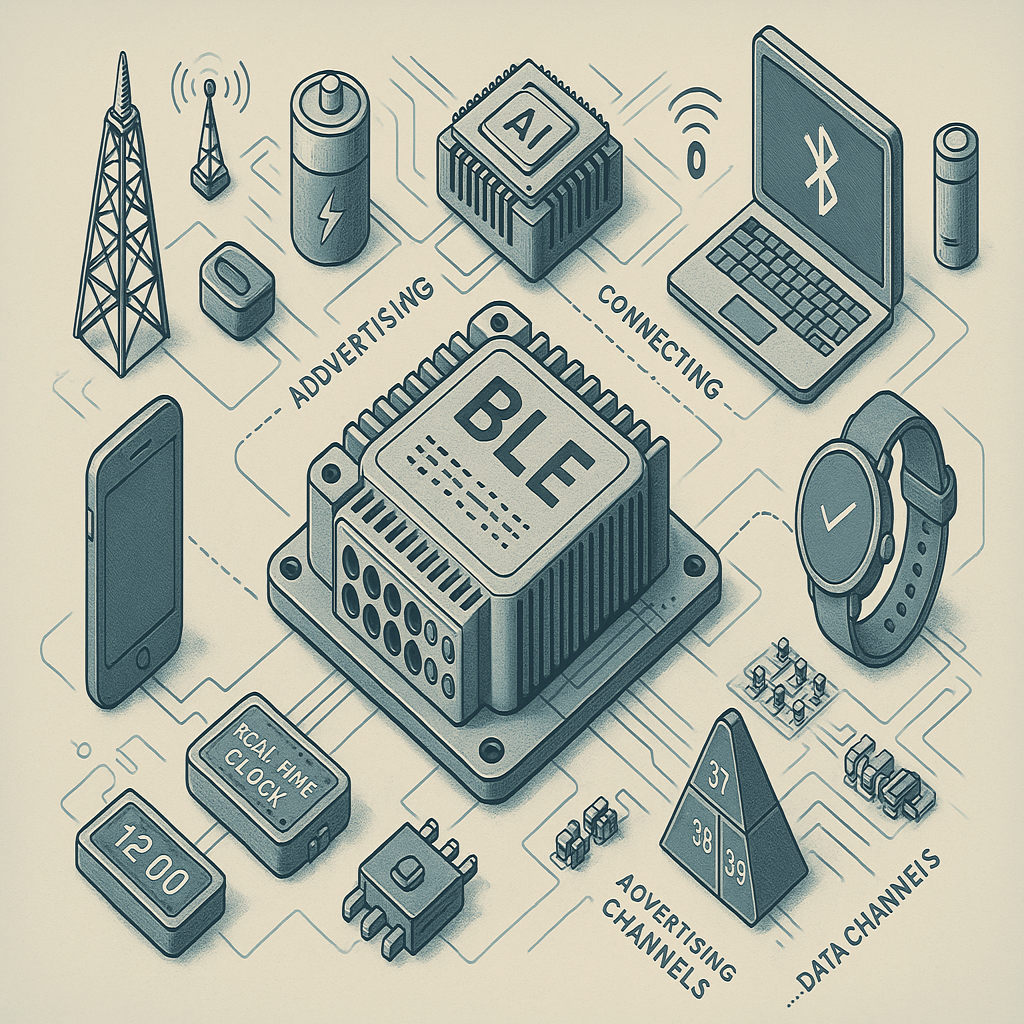
Getting Ready for Direct Communication
What is gatttool?
gatttool is a command-line utility used to interact with BLE (Bluetooth Low Energy) devices using the GATT (Generic Attribute Profile). It lets you connect to a BLE device, explore its services, read and write values, and listen for notifications all of which are essential when trying to understand or control how a BLE device behaves. This tool is especially useful during manual analysis and reverse engineering of BLE communication.
Talking to the Watch: Getting Interactive with BLE
Now that we've set up our external Bluetooth dongle, it's time to communicate directly with the watch no app involved.
Step 1: Check if the Dongle is Detected
Plug in your external BLE dongle and check if your system detects it:
Command:
lsusb
Look for an entry related to a Bluetooth adapter. Once confirmed, check Bluetooth interfaces with:
Command:
hciconfig
You should see something like hci1 (assuming hci0 is your inbuilt Bluetooth). If it's down, bring it up:
Command:
sudo hciconfig hci1 up
Step 2: Scan for BLE Devices
Let's scan for BLE devices and find the MAC address of our Mystery Watch:
Command:
sudo hcitool -i hci1 lescan
After a few seconds, you should see something like:
Output:
CC:3F:41:E6:EC:7E MysteryWatch
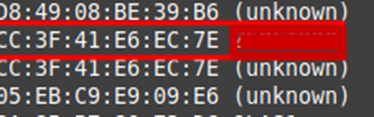
Once you've noted the MAC, you can get more device info:
Command:
sudo hcitool -i hci1 leinfo CC:3F:41:E6:EC:7E
Step 3: Explore gatttool
Before diving in, check available commands with:
Command:
gatttool -h
You'll see various flags and usage instructions. For our purpose, we'll use interactive mode.
Step 4: Enter Interactive Mode
Now, connect to the watch using:
Command:
sudo gatttool -b CC:3F:41:E6:EC:7E -i hci1 -I
Here's a breakdown of the flags:
- -b: Specifies the target device's MAC address.
- -i hci1: Tells gatttool to use our external dongle.
- -I: Launches interactive mode, so we can enter commands manually.
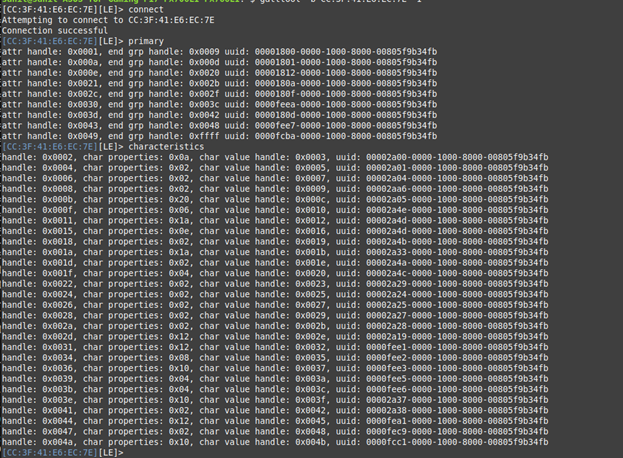
Once inside the interactive shell, type:
Command:
connect
If the connection is successful, you'll see:
Output:
Connection successful
Then run:
Command:
primary
This will list primary services available on the device.
Follow that with:
Command:
characteristics
This shows all characteristics, including handles, UUIDs, and permissions these are what we'll use to read from and write to the device.
Using What We Found: Handle & Value from Blog 2
In our previous blog, we analyzed the BLE HCI log in Wireshark and discovered an important interaction between the app and the watch. Specifically, we found a write command where the app wrote a value to a characteristic handle. Here's what we noted:
- Handle: 0x003c
- Value: 0139c701ad5501ce790194b20100002901a80114
This value was sent from the app to the watch most likely to trigger an action or set some data. Now that we're inside gatttool interactive mode, we can replicate this exact interaction manually to test and learn how the device responds.
To do this, simply enter the following command inside the interactive session:
Command:
char-write-req 0x003c 0139c701ad5501ce790194b20100002901a80114
This tells the device: "Hey, write this data (0139...14) to the characteristic at handle 0x003c."
If the write is successful, you'll see:
Output:
Characteristic value was written successfully
Now observe the device (in our case, the Mystery Watch) does it react? Does something change on the screen or behavior?
This is the essence of manually controlling and understanding BLE device functionality. You're no longer relying on the mobile app you're the one speaking directly to the device.
Decoding the Payload: Understanding and Customizing Hex Values
The value we wrote earlier 0139c701ad5501ce790194b20100002901a80114 might look like a random string of characters, but it's actually structured hexadecimal data, or what we call a BLE payload. Every part of it carries meaning, from headers that define the operation, to data that sets parameters, to ASCII-encoded text sent to the device.
To truly control the device, we need to break this hex value down and understand:
- Header: The first few bytes usually represent the instruction type or protocol version.
- Payload/Data: The following bytes could contain IDs, flags, timestamps, or text data (often in ASCII).
- Checksum or End Byte: Some devices use the last byte(s) for confirmation or padding.
By carefully reverse engineering this data either by changing one byte at a time and observing results, or by comparing logs of different actions we can learn how the watch interprets our commands.
For example, we identified a specific section of the payload that contained text data. Once we isolated it, we converted the relevant hex into readable ASCII and found that the device was showing that text on-screen. So we crafted a custom payload where that portion encoded the word "jawbreaker".
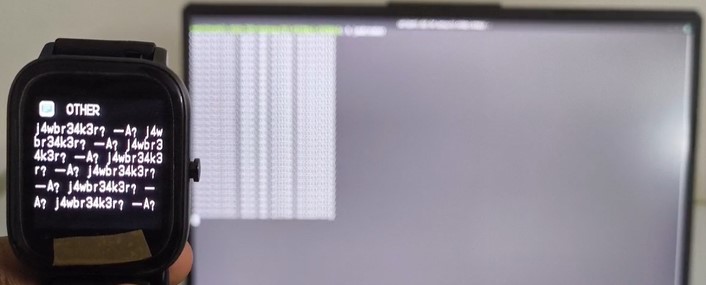
We built a new payload embedding "jawbreaker" in the right place and wrote it using:
Command:
char-write-req 0x003c [custom_payload]
When we executed the command, the Mystery Watch displayed "jawbreaker" proof that we now understood how to encode and send our own messages.
This ability to decode, edit, and craft BLE messages opens up endless possibilities for interacting with the device directly. You're not just observing you're now in control.
Wrapping Up
We've now reached the most hands-on part of our BLE journey. By connecting directly to the device using gatttool, identifying handles, and crafting our own payloads, we moved from passive observation to active control. With a deeper understanding of how BLE communication works under the hood, you're now equipped to experiment, modify, and explore further. This is where things start to get fun stay curious and keep digging.
Ready to Explore BLE Security?
Contact us for comprehensive IoT and BLE security assessments.
GET ASSESSMENT